
Using the Yoursafe app and website with you COA Sponsored account helps you manage your money quickly and safely.
Depending on your account type — Card Only, Limited, or Basic — you may see different features.
Logging In
On the App
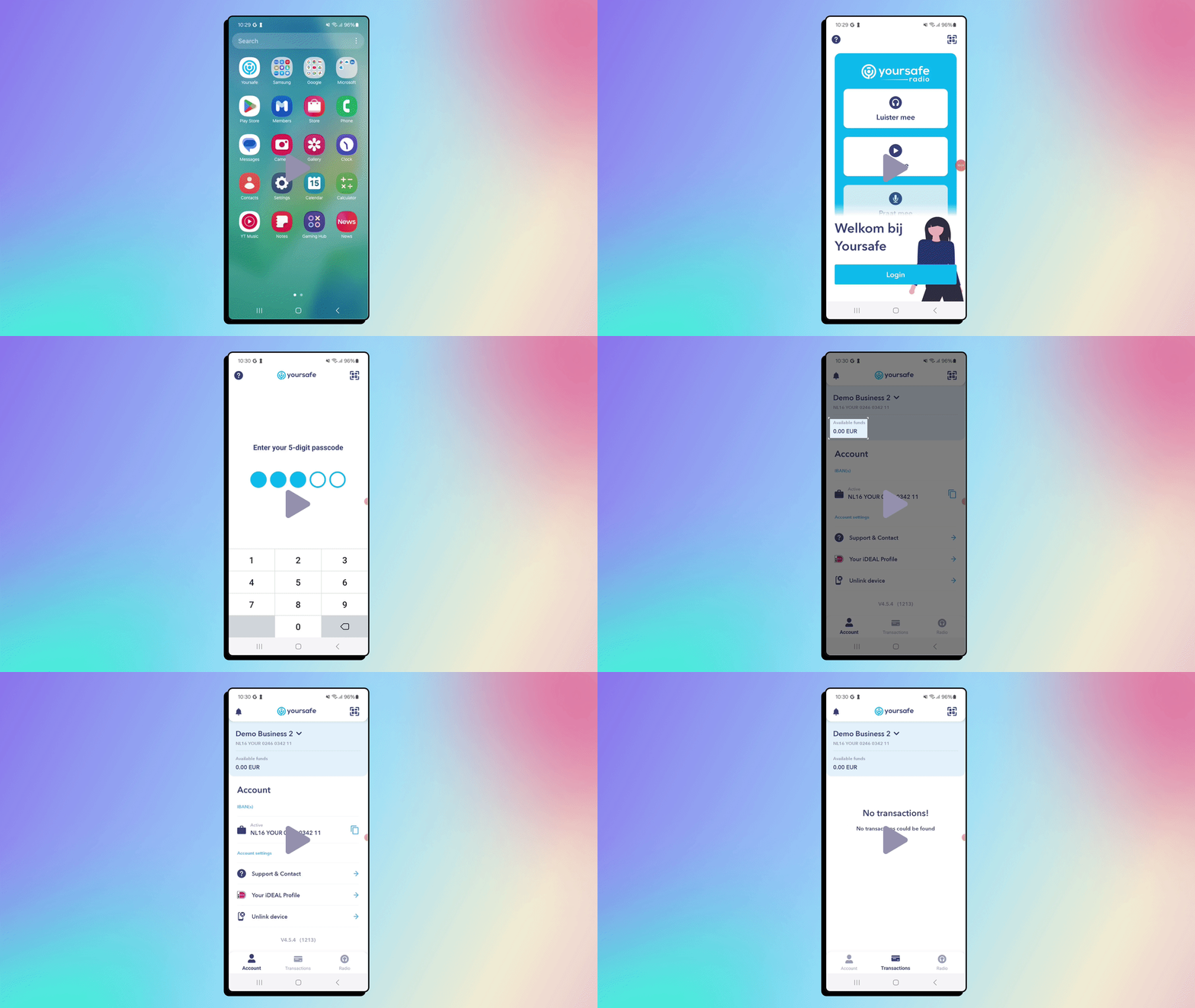
- Open the Yoursafe app on your phone.
- Enter your email address and password.
- Tap Log In.
- If asked, confirm with your PIN or biometric login (fingerprint or face ID).
On the Website
- Go to Yoursafe.NL
- Click Login in the top-right corner.
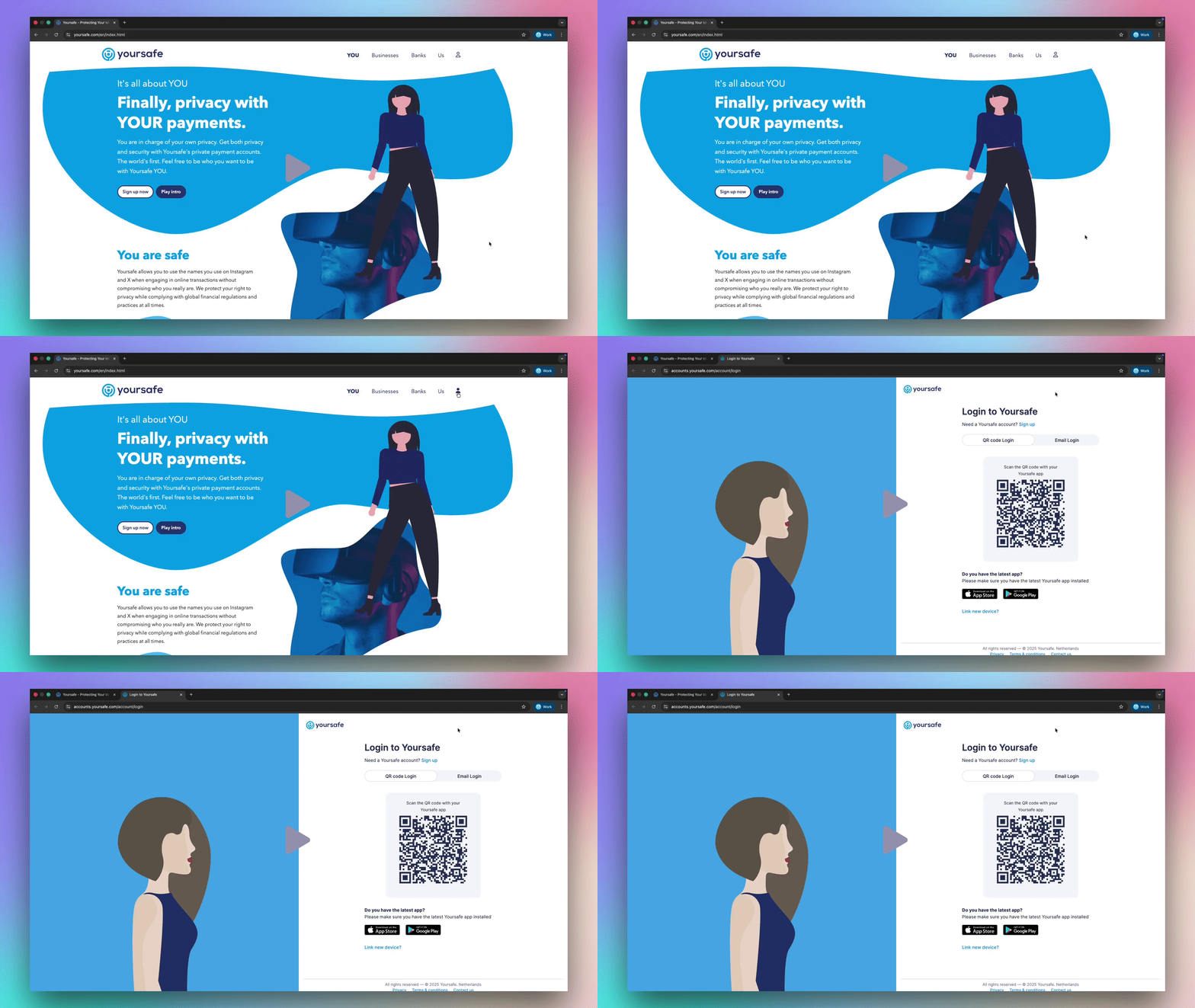
3. Scan the QR code with the Yoursafe mobile app or enter your email and password to access your account.
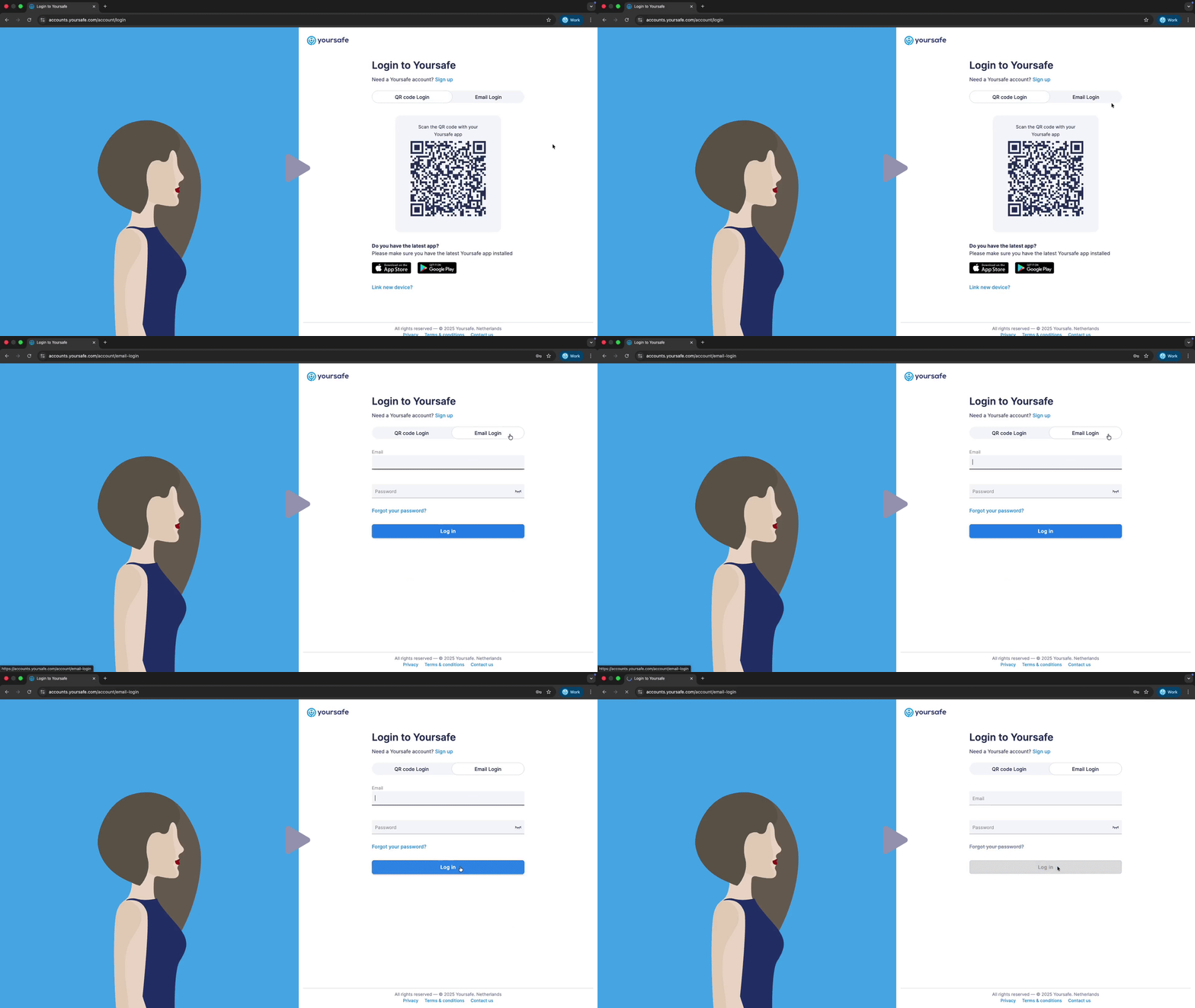
Tip: If you have a Card Only account, you can view general information on the website, but you need to upgrade to use the app.
Your Dashboard
After you log in, you’ll see your Dashboard.
Here you can:
- View your balance
- See your recent transactions
- Check your account type and upgrade if available
Click path:
App: Home → Dashboard
Website: Menu → My Account → Dashboard
| Feature | Card Only | Limited | Basic |
| View balance | ✖ |
✔ |
✔ |
| See transactions | ✖ |
✔ |
✔ |
| Make payments | ✖ |
Some |
✔ |
| Upgrade account | ✔ |
✔ |
✖ |
Sending and Receiving Money
Sending Money
- On a web browser log into your account at you.yoursafe.com (You cannot send money via the App)
- Once logged in select Transfer Money located on the top of the screen
- Select the type of transfer you would like to make and follow the prompts.
- You will need the Yoursafe App to confirm the transfer.
Note: Transfers can only be made via the web portal not with the Yoursafe App. To make a transfer login to your account by visiting you.yoursafe.com
Available for:
- Limited (some restrictions)
- Basic (full access)
Receiving Money
1. Tap Account Details to view your IBAN.
2. Share your IBAN so others can send money to you.
Available for: Limited and Basic accounts only
Managing Your Card
To check your card details or block your card:
1. Tap Card → Manage Card.
2. Here you can:
- See your card number and expiry date
- Block or unblock a lost or stolen card
Click path:
App: Card → Manage Card
Website: My Account → Card Settings
Upgrading Your Account
If you want more options, you can upgrade your account in the app:
1. Tap Upgrade Account.
2. Upload your ID and take a selfie.
3. Wait for a confirmation message from Yoursafe.
Available for:
- Card Only → Limited
- Limited → Basic
Please note: Account upgrading is only a feature of our COA Sponsored accounts. If you are not a member of a sponsored program then you are a YOU account holder and these features do not apply.
Summary Table
| Action | Card Only | Limited | Basic |
| View balance | ✖ |
✔ |
✔ |
| Send money | ✖ |
✔ (some limits) |
✔ |
| Receive money | ✖ |
✔ (some limits) |
✔ |
| Online payments | ✖ |
✔ |
✔ |
| International payments | ✖ |
✔ (some limits) |
✔ |
| App access | ✖ |
✔ |
✔ |
| Website access | ✔ |
✔ |
✔ |
Need Help?
If you have questions, visit your Infobalie, or call Yoursafe Helpdesk at 020 531 57 47. You can also find step-by-step help in our Support Center at www.yoursafe.com.
This information applies only to users enrolled in a government-sponsored program. If a client is unsure whether they are part of such a program, they should be treated as a YOU account holder. In that case, this information does not apply and should not be provided.
Comments
0 comments
Please sign in to leave a comment.